Trusting the tech: using password managers and passkeys to help you stay secure online
How today’s secure tools simplify your digital life, and reduce login stress and password fatigue
In today’s digital age, trust is the new currency. We entrust our devices with everything – our communications, our identities, our finances, and even our memories. But when it comes to online security, many of us hesitate, and ask:
- Should I really save my password in my browser?
- Is a password manager actually safe?
- What is a passkey?
These are all valid questions. And the short answer is:
Yes, you can trust the tech – but it’s important to understand what choices you’re making.
Password managers: your digital safe
A password manager is like a secure vault that stores your login credentials for websites and apps. You only need to remember one primary password, and the manager takes care of the rest.
There are 2 main types of password manager to consider:
- First party: provided by the device-maker or browser-maker, such as Chrome, Safari, Edge, and Firefox.
- Third party: provided by another company that you install separately but might integrate with your browser.
Why trust them?
-

First-party browser-based and device-based password managers can take advantage of deep integration with the platform’s security.
-
Reputable and long-standing third party password managers will likely only have survived through strong attention to security.
-
Password managers help you generate and manage strong and unique passwords, which means you avoid the “123456” or “password1” trap.
-
If you forget your primary password, password managers offer the option of password recovery so it won’t mean losing access to all the passwords in your password manager.
-
Password data is stored securely either using device features like security chips, or encryption, or both.
-
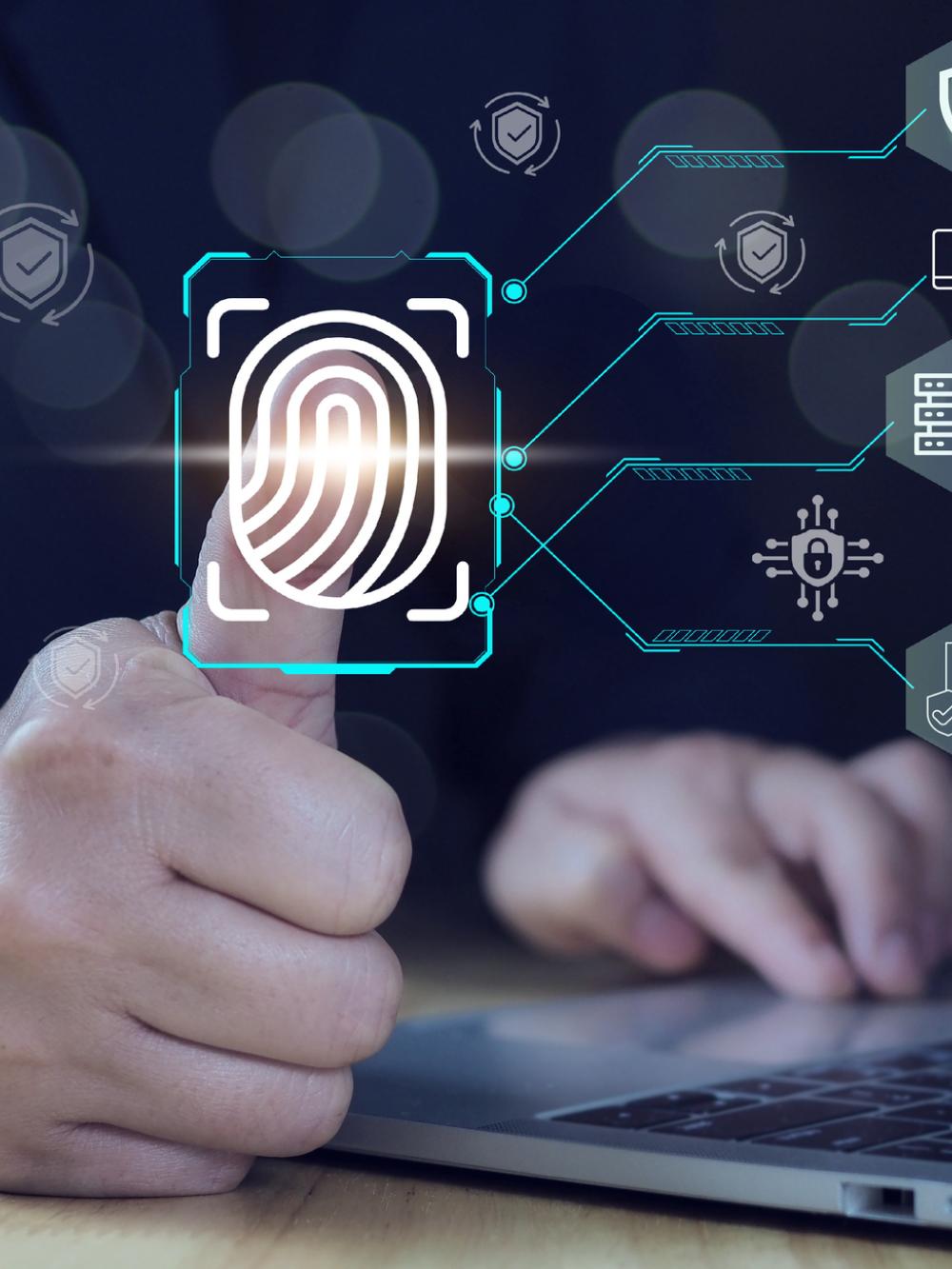
Many first-party and third-party password managers now use fingerprint or facial recognition before revealing passwords.
What to watch out for:
-

If you’re choosing a third-party password manager, pick a reputable company with a strong security track record.
-
Enable two-step verification (2SV) for your account. This may also be referred to as two-factor authentication (2FA).
-
Use a strong primary password and never reuse it elsewhere.
-
Browser-based password managers often lack the advanced features of standalone password managers, such as secure notes or password sharing.
-
If someone gains access to your unlocked laptop, they may be able to access your passwords. This tends not to be the case on phones.
Best practice:
If convenience is the most important thing, use the password manager provided by your browser or device manufacturer to generate and manage your passwords. If you want additional features, have a complex mix of devices/browsers or want to avoid being “locked in” to the vendor, then choose a reputable third-party password manager.
Passkeys: the future of authentication
Whilst most websites still need you to have a password, the technology landscape is changing and increasing numbers of websites are offering passkeys as an alternative to passwords. A passkey is a passwordless login technology based on public-key cryptography. It’s a new standard developed and supported by tech giants like Apple, Google, and Microsoft. For more information on the merits of choosing passkeys see the NCSC’s Passkeys: the promise of a simpler and safer alternative to passwords.
How it works:
-

Instead of a password, your device creates a pair of complex secrets for each website you sign up to.
-
When you sign up, your device keeps one secret and gives the other to the website.
-
When you log in, your device checks that it is you (by whatever means you use to unlock it). It can then prove to the website it has the device secret, without revealing the secret.
-
Because this happens so quickly, it's often 8 times faster than logging in with a username, password and two factor code, whilst being more secure.
Why they're secure:
-
They stop phishing. Separate passkeys are used for each website, so your device can’t be tricked into logging into a fake website.
-
Website hacks don’t expose your passkey. If a website is hacked, the attacker will only get the website’s secret which can't be used on any other websites, unlike a password which might be reused.
-
They are biometric-friendly. Your device checks that it's you by whatever means you use to unlock that device, for example Face ID, fingerprint or PIN.
Why you should start using them:
Passkeys are rolling out fast. Websites like Google, eBay, and PayPal already support them. They’re easy to use, hard to compromise, and eliminate password fatigue.
So, can you trust the tech?
Yes. The password managers and passkey technologies we use today are built with robust security principles. When used correctly, they offer far better protection than human memory, sticky notes, or reused passwords.
Final tips:
- Consider reputation when deciding which tools you want to place your trust in.
- Keep your devices secure, for example ensuring you run the updates and use biometric locks.
- Back up your recovery options, for example using recovery keys or trusted contacts.
- Don’t be afraid to adopt new security practices like passkeys – they’re easier and it’s where the internet is headed.
Find out more about Managing your passwords in our Top tips for staying secure online guidance.
Amy B
Head of Citizen Resilience, NCSC
Share and print this article
Written by